
Import a deck with a companion
Put your companion under a line that says Companion in your decklist, or in the companion board on Moxfield, and import the deck as usual. If it arrives in the deck instead, right-click it in the deck editor and choose Set as Companion.
Import the deck
Decklist
Open Decks and choose Add new deck (on a phone, the +).
-
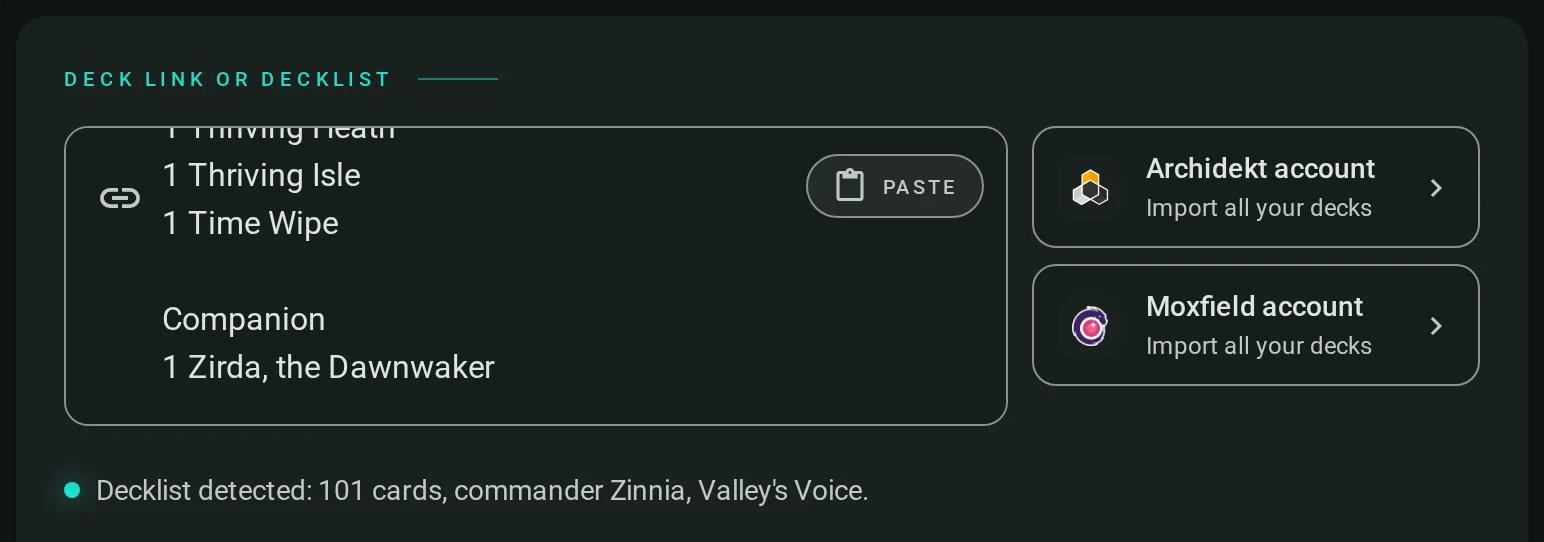
Paste your decklist. Put the companion at the end, under a line of its own that says Companion:
Companion
1 Zirda, the Dawnwaker
The line below the box counts the companion with the rest, so a full deck reads 101 cards.
Forgot the Companion line? Create the deck anyway and set the companion afterwards with a right-click, as below.
Check the deck name and the commander, which are filled in from the list, and choose Create deck.

Moxfield
On Moxfield, put the card in the deck's companion board.
On Playgroup, open Decks, choose Add new deck and paste the link to the deck.
Choose Create deck.
Archidekt
On Archidekt, give the card the category Companion, as its first category. A card whose first category is Sideboard comes in on the sideboard.
On Playgroup, open Decks, choose Add new deck and paste the link to the deck.
Choose Create deck.
The deck opens in the deck editor. Your companion is shown on its own under Companion, above the other cards, and the line beside Your deck reads 100 cards, plus a companion.

Set the companion afterwards with a right-click
Do this when you left out the Companion line, when the companion came in as part of the deck or on the sideboard, or to swap it for another one.
Open Decks, choose the deck, and on its page choose Cards (it shows the card count) to open the deck editor.
Find the companion. A card in the deck is under its type, such as Creatures, and typing its name in Filter cards in deck shows only that card. A card on the sideboard is under Sideboard below the deck: choose Sideboard to open it.
-
Right-click the card (on a phone, tap it) and choose Set as Companion.
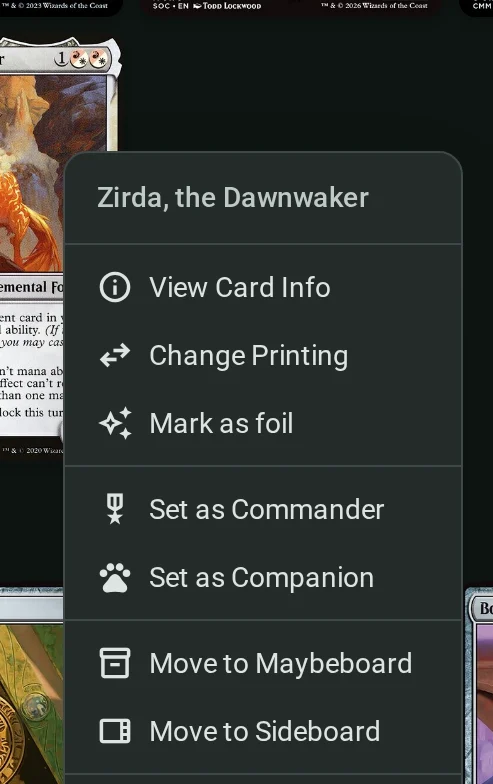

The card moves to Companion. To undo it, open the same menu on the companion and choose Remove as Companion: the card goes into the deck.
Your companion in a game
On Playgroup Live and in a playtest, your companion starts face up in your command zone, in the bottom right corner, behind your commander. Only its name bar shows, just above your commander's. Everyone in the game can see it.

Point at the companion to see the whole card.
-
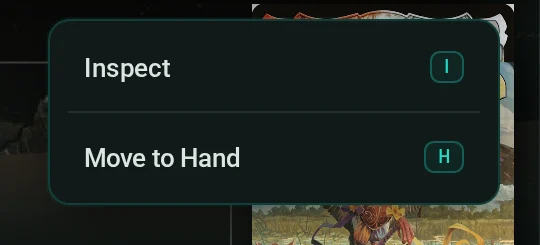
Right-click it (on a phone, long-press it) and choose Move to Hand to put it into your hand. On a computer, you can also point at it and press H.
Or drag it straight onto the battlefield.

Playgroup does not ask for or check the 3 mana to put it into your hand: you pay it the way you pay for any other card.
Why you might see 101 cards
The companion is in the deck, not set as the companion. Playgroup Live takes a deck of exactly 100 cards with the commander, and says the deck has 101. Set the companion as above and the deck is back at 100.
Good to know
- Set as Companion is only offered for a card with the Companion ability, and never for your commander.
- A deck has one companion. Setting another one puts the first back where the new one was.
- Playgroup does not check your companion's deckbuilding condition or its colors.
- The companion is not counted in the 100, but it is in the deck price.
- A deck linked to Moxfield or Archidekt keeps the companion you set here when it is imported again, unless that deck names a companion of its own there or no longer has the card.
- One line like
Companion: Zirda, the Dawnwakeris read as the heading alone, and the card is left out. Put the card on the line below.
Find this in
Something on this page is wrong? Tell us on Discord or contact us