
Connect the Discord bot
Open Settings of your playgroup, choose Discord bot, add the bot, called Jomar, to your server and run the command you see there. You need to be an admin of the playgroup and an administrator of the Discord server.
Connect it
-
Open your playgroup and choose Settings (the gear), then Discord bot.
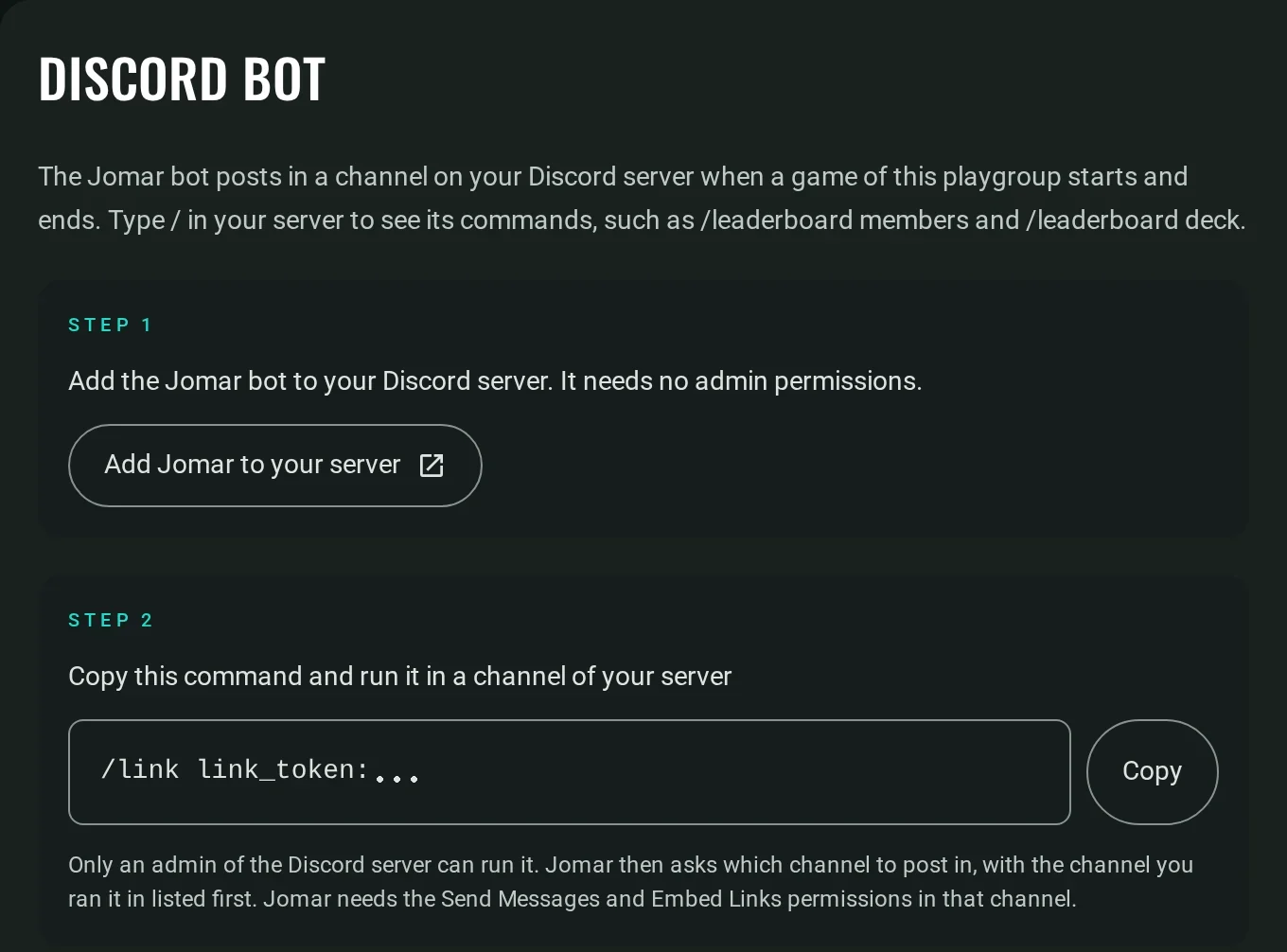
Choose Add Jomar to your server and add the bot to your server. It needs no admin permissions.
Back on the page, choose Copy next to the command. It starts with
/link link_token:.Run the command in a channel of your server. Jomar then asks which channel to post in, with the channel you ran it in listed first.

What Jomar does
- It posts when a game of the playgroup starts, and again with the result.
- It posts about the playgroup's game nights.
-
/leaderboard membersand/leaderboard deckshow the top 5. Type/in your server for the other commands.
Good to know
- Play one game first. Jomar does not save the channel, and shows no leaderboard, while the playgroup has no finished game.
- Jomar needs the Send Messages and Embed Links permissions in its channel.
- The command works once. To link again or to change the channel, open the page for a new command.
- Generate a new code is for a code somebody else saw. The old one stops working, and a server that is linked stays linked.
- A server belongs to one playgroup. Linking it to another playgroup ends the first link.
- Games you log afterwards, solo playtests and games without a playgroup are not posted.
Why you might not find it
Only admins have Settings. The Members page shows who is an admin.
Find this in
- A playgroup's settings, Discord bot
Something on this page is wrong? Tell us on Discord or contact us