
Build a deck from your own cards
Open your deck in the deck editor and group its cards by Collection: they are sorted by where your copies are. Mark as ready then lists every card to pull.
You need at least one binder or box. See Start a collection.
See what you have
Open the deck and choose Cards. For a deck you are still building, its status says Building. If Playgroup asks Do you own this deck in paper?, choose No, I'm brewing it.
Read the line under Your deck, such as "21 in your collection · 2 in another deck · 4 not in your collection". Basic lands are left out.
-
In the menu after Group (on a phone, the first menu above the cards), choose Collection.
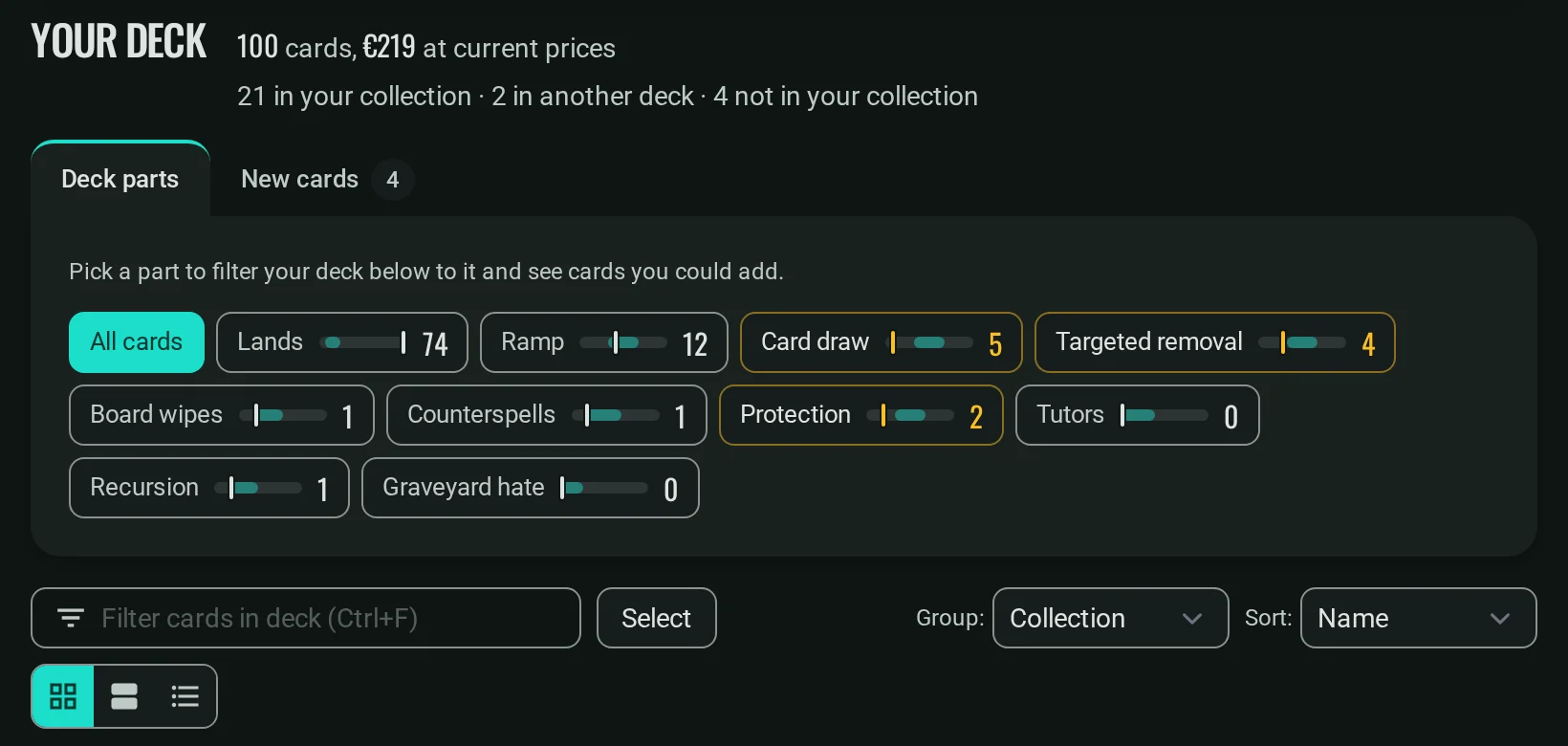

What the groups mean:
- With this deck: copies already in the deck.
- The name of a binder or box: you have a loose copy there.
- In and the name of a deck: your copies are in another Ready deck.
- The name of a deck, then archived: a deck you archived and kept together. You can take from it.
- On order: copies you marked as ordered.
- The name of a player and a binder: see Find cards your playgroup members have.
- Not in your collection: cards you do not have.
- Basic lands: not tracked.
Take and order cards
Open a card's menu in the deck editor: right-click it, or tap it on a phone.
- Take from collection moves a copy into this deck. If your copies differ, Playgroup asks which one.
- Put in collection moves it back out, into the binder or box you pick.
- Mark as Ordered is for a card you do not have and have bought. It moves to On order.
- Mark as Arrived takes it from On order to With this deck.
Mark the deck as ready
Choose Mark as ready. The button is at the top once the deck has 100 cards. Before that, choose Mark as ready… in the status menu beside the deck's name.
-
Pull each card from your binders and leave it ticked. Every card you have starts ticked, and the list goes binder by binder. If you have several copies, pick the one you pulled in the menu under the card's name.
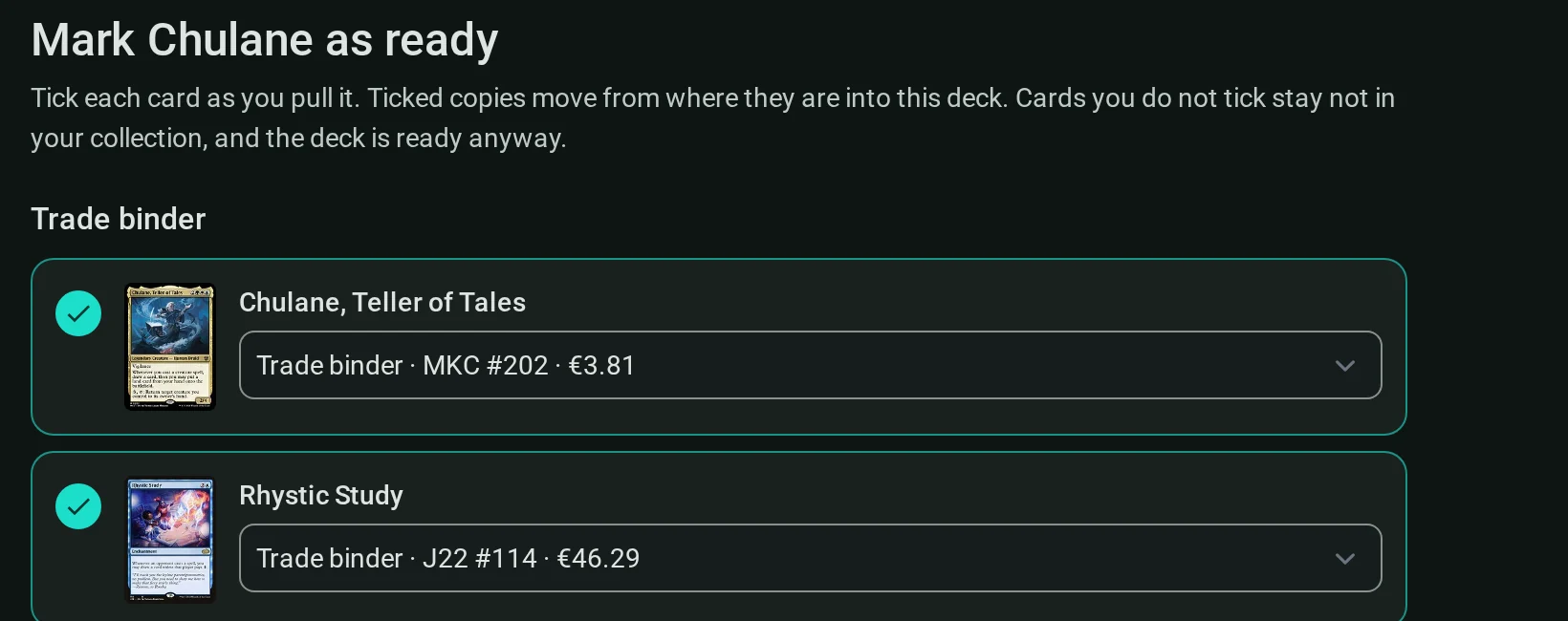
Untick what you did not pull. Cards on order come ticked as arrived: untick one that has not.
Tick I have it for a card that was not in your collection and is in your hands.
A card under Only in another deck starts unticked. Tick it only if you have another copy.
Choose Mark as ready at the bottom. The ticked copies move into the deck, and it is in the tracker. A card you left unticked stays where it is, and the deck is Ready anyway.

Mark as ready without my collection, below the list, makes the deck Ready and moves nothing.
Change a Ready deck
- Cut a card: the box Where did the card you cut go? is at the top of the page, so scroll up. Choose a binder or box. Cards you cut later go there too. The box at the next cut says so, and Change in it picks another place.
- Add a card: a copy from your binders moves into the deck, and the box at the top says which one. Undo puts the copy back; the card stays in the deck's list.

Good to know
- Playgroup never takes a card out of another Ready deck. It takes from your binders and boxes first, then from archived decks you kept together.
- With several copies, adding a card to a Ready deck takes the one with the lowest price.
- Two decks you are still building can both show the same loose copy. It is free until one of them takes it.
- If you leave the page without saying where a cut card went, Playgroup asks again at your next change to the deck.
Find this in
- Deck editor, Mark as ready
- Building, Ready and Archived decks
- Find cards your playgroup members have
Something on this page is wrong? Tell us on Discord or contact us