
Import your collection
Export your collection as a CSV file from the app it is in, then open a binder or box on My Collection and choose Import a file. Nothing is added until you have seen what is in the file.
Export from your app
ManaBox
Export a CSV from the top right menu of the Collection tab for everything, or from the top right menu of one binder.
- An export of everything keeps your ManaBox binders apart. Each one goes into your binder of the same name, or into a new one.
- Cards in ManaBox decks and on ManaBox lists are left out. A deck holds its own cards on Playgroup, and a list is cards you want.
Archidekt
Open Collection (on a phone, in the menu at the top left), choose Export, and choose Export again at the bottom of the window. The columns Playgroup needs are ticked for you: Edition Code, Foil and Scryfall ID.
- The whole file goes into one binder or box.
Moxfield
Open Collection, choose More, and then Export CSV.
- The whole file goes into one binder or box.
- Cards are matched by set and collector number.
Cardmarket
Export your stock as a CSV.
- Printings are matched by Cardmarket's own product number.
- The whole file goes into one binder or box.
Another app
Any CSV works if its first line names a column for the card name (Name or Card name) and one for how many you have (Quantity, Count, Qty or Amount).
- A Scryfall ID column gives you the exact printing. So do Set code and Collector number together.
- Upload the file as your app made it. A copy that was opened and saved in another program can be unreadable.
Import the file
On My Collection, open the tab of the binder or box the cards should go into. If you have none yet, choose Add binder or box (on a phone, the +), give it a name and choose Add. After your first one, Playgroup asks which of your decks are built in paper: tick those, choose Save, and open your binder's tab.
-
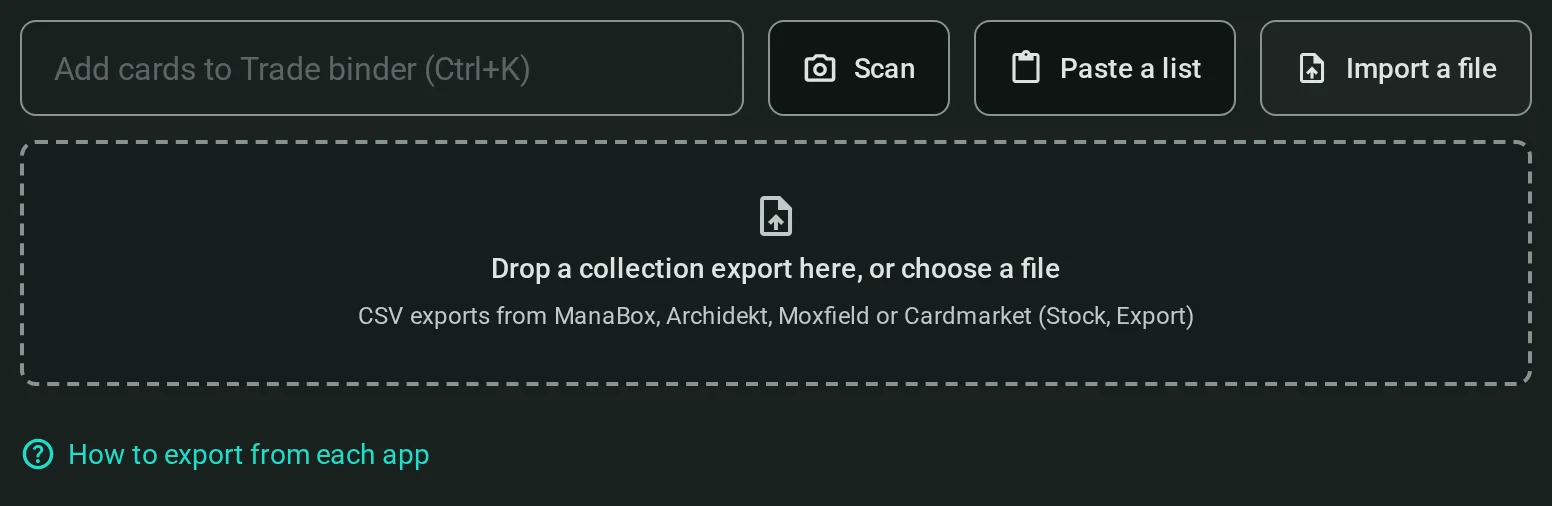
Choose Import a file (on a phone, the button with a page and an arrow), then drop your file or choose it. Playgroup works out which app it came from.
-
Check the preview. Into says where each group of cards goes: one of your binders, New binder with the name beside it, or Skip. Groups from ManaBox start on your binder of the same name, whichever tab you had open. If that binder already has cards, choose Add on top of the cards already there, which is set for you, or Replace what is in this binder.
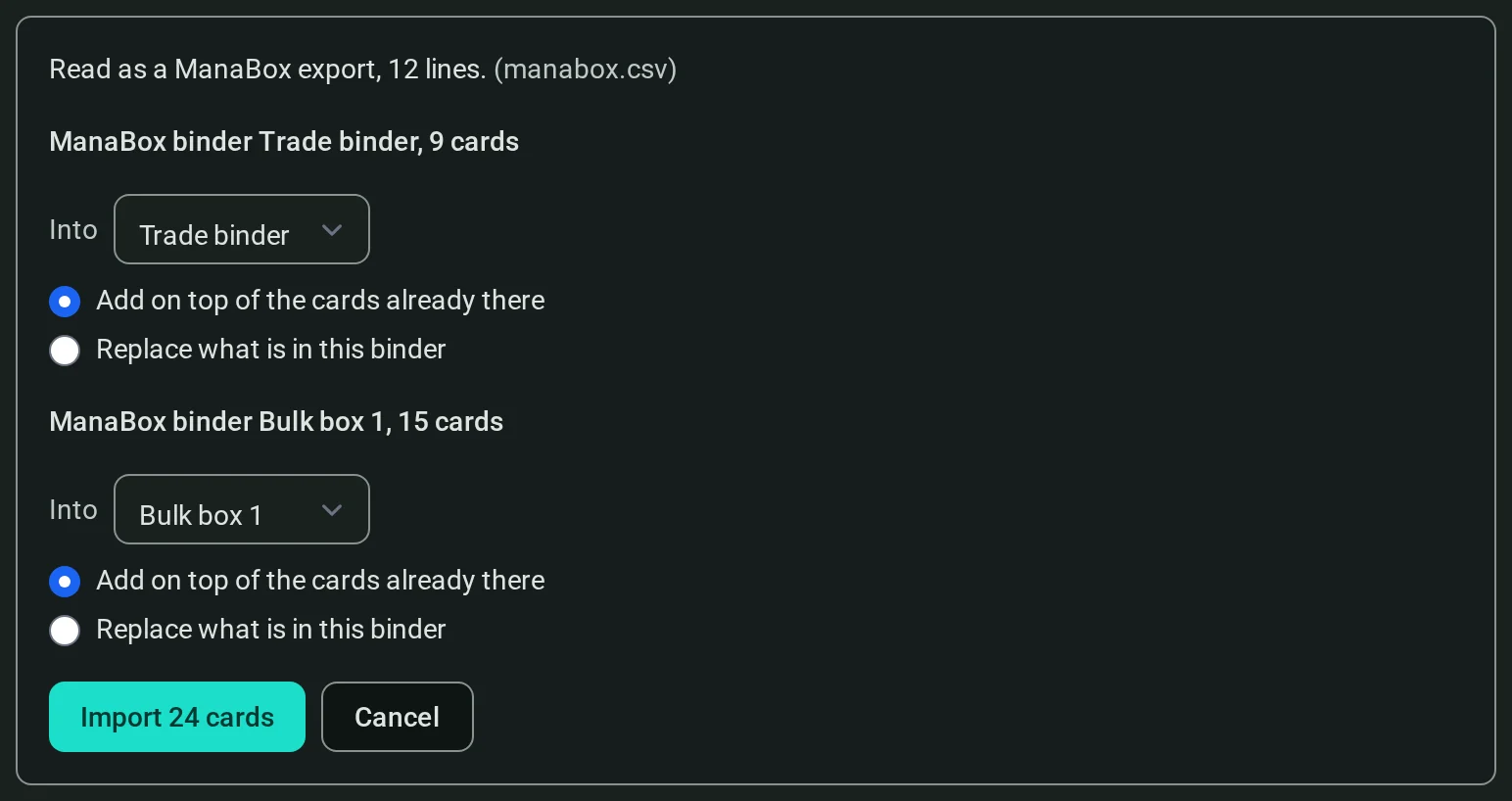
Choose the button under the preview, such as Import 24 cards. The box that appears links each binder the cards went into.
If your decks already count some of these cards, the box that appears asks about them. Take them out removes them from the binder, so a card in a built deck is not counted twice. Keep them is for copies you have on top of the ones in your decks.


Good to know
- Undo this import is in the same box, and works once. It takes out what the import added, puts back what Replace took out, and removes a binder the import made. The box is gone when you leave the page, so undo before you do.
- A new binder with a name you already use adds to that binder.
- Replace leaves cards you marked as ordered where they are.
- Condition, language and prices are not kept.
- What could not be added is listed in the preview with the reason: cards that were not found, tokens we recognise, proxies, and finishes we do not know.
Find this in
- My Collection, How to export from each app below Import a file
- Start a collection
Something on this page is wrong? Tell us on Discord or contact us