
Start a collection
Open My Collection and choose Add binder or box to list your loose cards. Decks you have built in paper count without listing their cards: tick them when Playgroup asks.
My Collection is next to My Decks on your decks page. It is also in the menu under your picture, and on a phone in the main menu.
Make your first binder or box
-
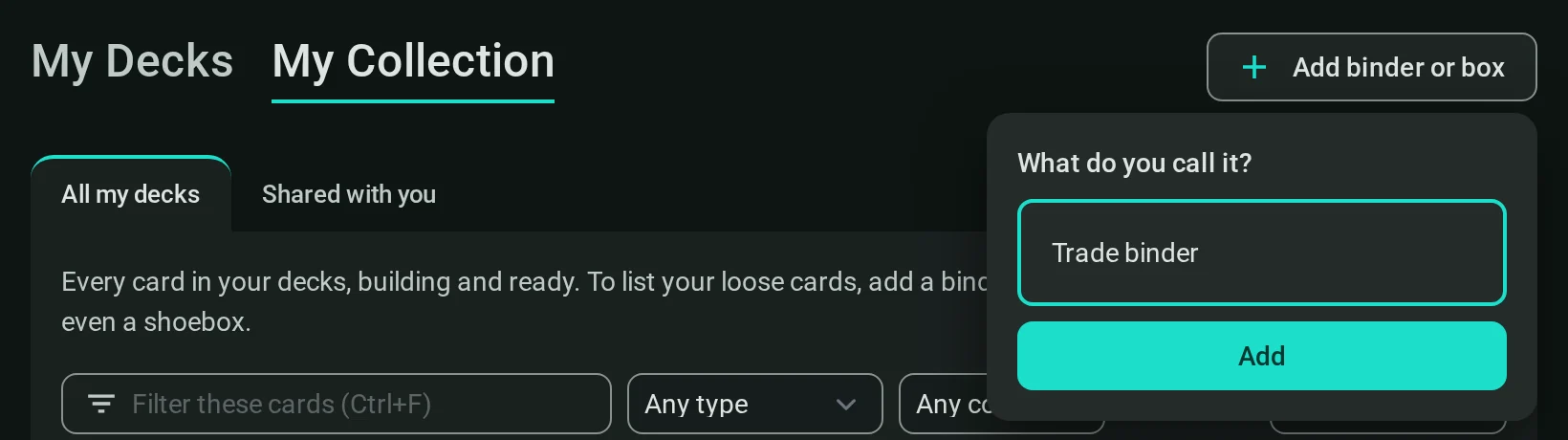
On My Collection, choose Add binder or box (on a phone, the +). Give it the name you use for it, such as Trade binder, and choose Add.
-
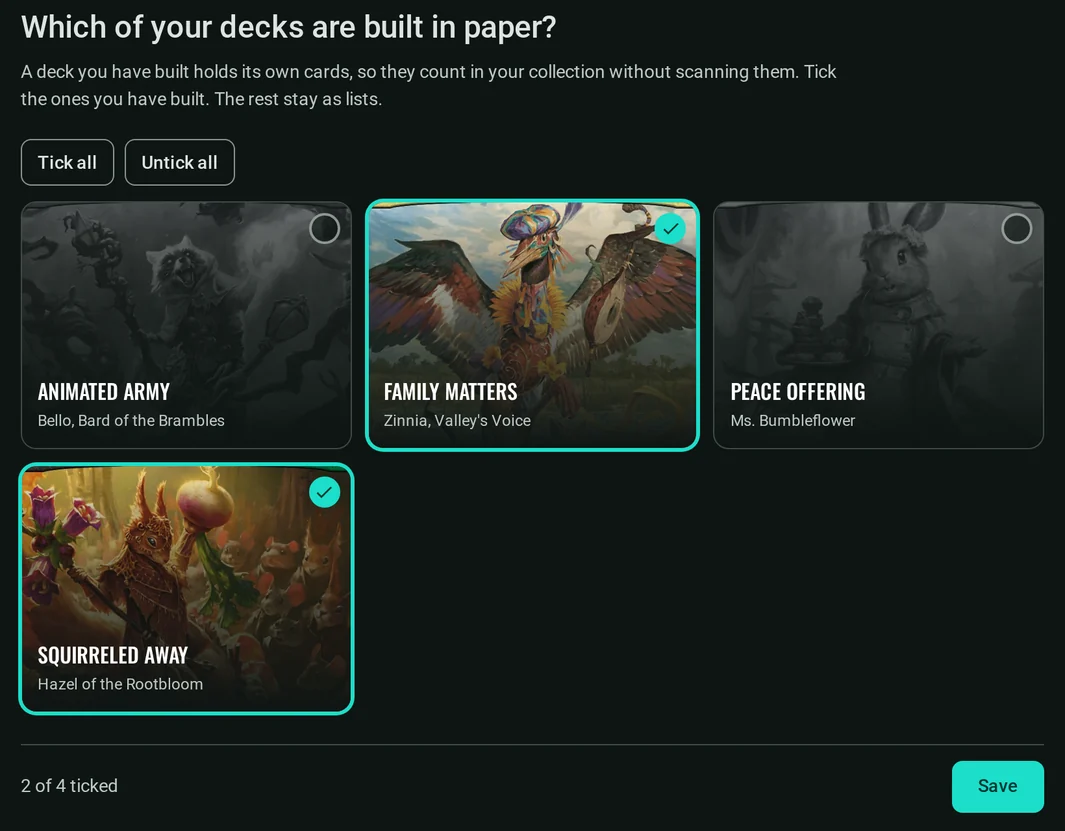
Playgroup asks Which of your decks are built in paper? Tick those and choose Save. A deck you tick holds its own cards, so they count in your collection. Decks you played in a tracked paper game come ticked.
Open the tab of your new binder or box.


Add cards
Every way of adding goes into the binder or box whose tab is open.
- By name: type in Add cards to and choose the card, or press Enter for the first one. Choose printing in the line that follows sets which printing you have. The copy is added as non-foil.
- A list: choose Paste a list, put one card on each line, and choose Add to with the name of the binder or box. Write *F* after a foil and *E* after an etched copy. A card that has no printing in that finish is added as non-foil. Lines that were not found are listed in red.
- With your camera: choose Scan, then Turn on camera or or use a photo instead. Check the cards it found, then add them with the button at the bottom. Undo last scan takes them out again.
- A file from another app: see Import your collection.
On a phone, the three buttons under the search box are Scan, Paste a list and Import a file, in that order.

Find and move cards
- Filter these cards searches the tab you have open. You can also pick a type or a color, and change the grouping and the order.
- All my decks is a tab with every card in your Building and Ready decks, built in paper or not. You can only look there, not change anything.
- Right-click a card (on a phone, tap it) for its menu. View Copies shows each printing you have, to change the number or the printing, and the finish when the printing comes in more than one. Move 1 Copy to… and Move All to… are there once you have two binders or boxes.
- For several cards at once, choose Select cards, pick them, and use Mark as Ordered, Remove or, once you have two binders or boxes, Move. It takes every copy of a card you pick.
- ⋯ at the end of the line with the binder's name renames it, shares it, or removes it. Only an empty binder or box can be removed.
Good to know
- A list can have up to 5,000 lines. A line with more than 999 copies is left out.
- If you leave the question about paper decks without saving, My Collection keeps asking. Choose Choose decks there.
- A deck you import later asks Do you own this deck in paper? in the deck editor.
- You can change your mind about one deck in its status menu. See Building, Ready and Archived decks.
- A binder or box is private until you share it. See Share a binder or box.
Find this in
- My Collection, before your first binder or box
- Build a deck from your own cards
Something on this page is wrong? Tell us on Discord or contact us